Screenshot production
App Store screenshot generator: export checklist
Searching for an App Store screenshot generator returns a wall of template galleries, and from a distance they all look usable. What decides whether a release ships is made later, inside the files: their pixel dimensions, their color type, how many panels each store will take, and whether the copy baked into the artwork is allowed to say what the template wrote. A generator with a good preview and a broken ZIP costs a weekend of re-exporting. Judge the export first.
By AppScreenDesign · Published
The export has to match a declared preset
App Store Connect accepts from one to ten screenshots for each device size, as .jpeg, .jpg or .png, and its specification forbids alpha channels and transparency. Coverage requirements are narrower than the device list: one image for the Dynamic Island medium iPhone display at minimum, plus one for the iPad 13-inch display when the app runs on iPadOS.
A generator that emits a single template canvas, usually 1242 × 2208 because that was the iPhone 8 Plus size, does not meet any of that. The tool has to let you choose a device family and write each panel at the preset that family declares: 1320 × 2868 for the large iPhone, 1179 × 2556 for the medium one, 2064 × 2752 for iPad Pro 13-inch, 2560 × 1600 for the Mac App Store, 3840 × 2160 for Apple Vision Pro.
Play draws a different line. No listing goes live without two screenshots across different device types, and a supported device type can carry up to eight, in PNG or JPEG up to 8 MB each, with every side between 320 and 3,840 px. One design, two export targets, and the upper limit differs. Per-slot numbers live in the App Store screenshot size guide and the Google Play screenshot sizes reference.
Worked example: a capture that misses the slot
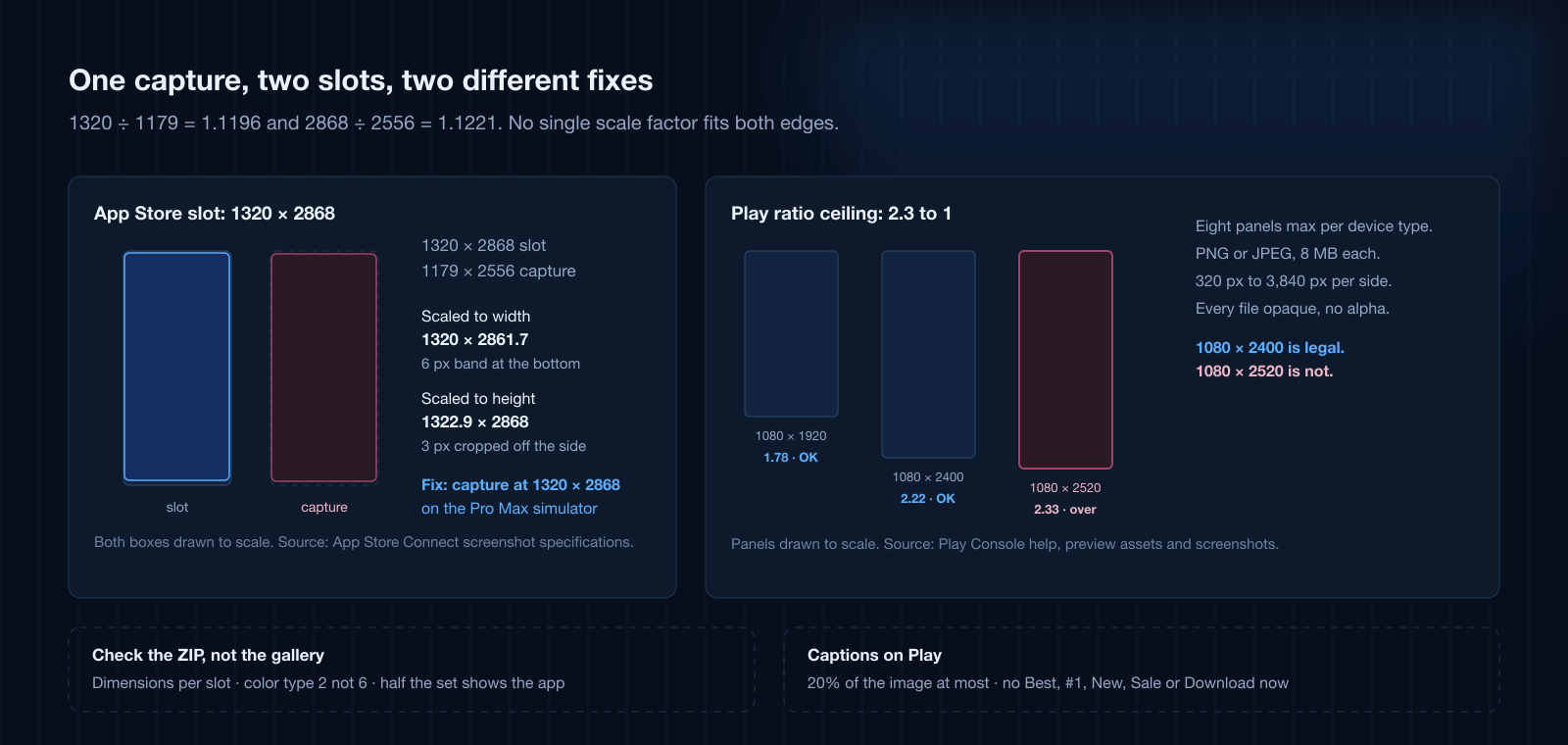
Drop a raw simulator capture from iPhone 16 Pro, which renders at 1179 × 2556, onto a 1320 × 2868 canvas and the tool has to decide something. 1320 ÷ 1179 is 1.1196. 2868 ÷ 2556 is 1.1221. Two different factors, so no single multiplication fits both edges.
Scale to the width and the image finishes at 2861.7 px, leaving a 6 px band at the bottom for the canvas background to show through. Scale to the height and the image becomes 1322.9 px wide, 3 px past the slot, so the crop eats the outer edge of the frame. Most generators pick one of those silently, and neither is the fix.
The fix is upstream: capture at the slot. The iPhone 16 Pro Max simulator writes 1320 × 2868 natively, so each panel is a crop of real pixels rather than a 12% stretch that softens text rendering across the whole set. Apple also states that screenshots submitted at the highest required resolution are scaled down automatically for smaller phones, which is why one 1320 × 2868 set per language covers the phone family.
Play has no master slot of that kind. Phone panels are commonly authored at 1080 × 1920, and the ratio ceiling is 2.3 to 1 rather than 2 to 1. That makes 1080 × 2400 legal at 2.22 and 1080 × 2520 a rejection at 2.33. A generator that only offers a 16:9 dropdown will hand you files that need a second pass.
Captions: 20% of the image on Play, half the set on Apple
Play's preview asset page treats captions as a budget, with 20% of the image as the ceiling. On a 1080 × 1920 panel that is 414,720 of 2,073,600 px, which allows a full-width band 384 px tall. Two lines of 90 px type fit inside that. A caption block covering the top third does not.
The same page names the words it treats as ranking or price claims: Best, #1, Top, New, Discount, Sale, Million Downloads, plus calls to action like Download now. Template copy arrives carrying phrases of that kind often enough that stripping them is the first edit on any bought set.
Apple measures the set instead of the caption area. Guideline 2.3.3 says screenshots should show the app in use rather than title art, a login page or a splash screen, and the guideline reference gives the threshold: more than half of the screenshots for each supported device must show the app in use. A three-panel set therefore needs two live screens and a five-panel set needs three. Overlays stay legal while the interface remains the subject.
Which means one template can be fine on one store and off-policy on the other. The caption writing guide works through the wording, and the store comparison shows where those captions sit in each layout.
Frames and invented UI are two different risks
Play lists device imagery among the elements to avoid in preview assets, because hardware dates quickly and can look wrong to someone holding a different phone. Apple's guideline is about representation rather than furniture: the set has to show the app in use on the correct device, and the reference page warns against screenshots that misrepresent the actual interface. An iPhone frame filed under the 13-inch iPad display is that mismatch even when the bezel is accurate.
Generated interface is the bigger risk. A tool that paints a dashboard your app never renders produces a screenshot that cannot show the app in use, which is the failure 2.3.3 describes as misleading marketing material. Use a generator for composition: background, margins, type scale, device placement. Take the pixels inside the frame from a real build or simulator.
The same test applies to AI-rendered artwork and feature graphics. Fixing screenshot rejections is the rejection-side checklist; the rule here is shorter. If the image shows a screen that does not exist, layout polish cannot save it at review.
The check that takes five minutes
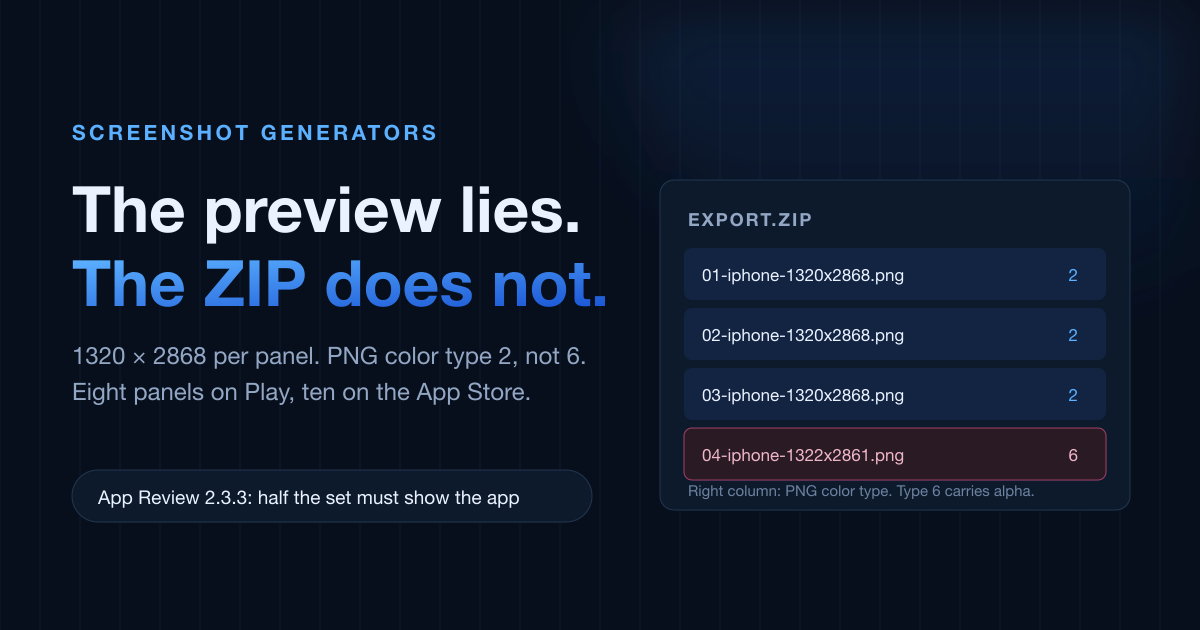
Unzip the export and read each file's dimensions against the slot it is meant for. 1320 × 2868 and 1179 × 2556 for the two iPhone sizes, iPad Pro 13-inch at 2064 × 2752, then 1080 × 1920 or the taller Play canvas you chose inside the 2.3 ceiling. Then read the color type: PNG color type 2 is RGB, type 6 is RGBA and carries the alpha channel Apple rejects. A 32-bit file that looks fully opaque still fails upload.
Check the other Play limits while the folder is open: 8 MB per file, and no more than eight panels per device type. Count the files. A generator that ships ten panels for a phone set gets cut or refused at upload, and a set that skips the foldable section leaves that listing empty.
Then shrink the set to about 200 px wide and read the headlines in order with the store description covered. If the first panel needs the second one to make sense, the order is wrong. The screenshot size checker reads dimensions and color type in the browser, the alpha removal tool re-encodes to 24-bit RGB, and the preview simulator shows the iOS search truncation.
What the generator should not decide for you
Localization is one. Play documents that text translations without localized graphic assets leave the default-language screenshots in place, so a translated listing can sit under English panels. Alt text is another: the same page recommends describing the important part of the image in 140 characters or less per screenshot, written for a screen reader rather than for search.
Panel order is the third. How to order App Store screenshots treats it as a sequence argument, where the leading portrait panels have to explain the product before anyone taps through from search. A generator that fills template slots in file order produces a set with no argument in it.
Agent workflows are a fair use of the tool when the work is repetition: ten panels, six locales, one layout. That is what the AI screenshot generator and its MCP surface cover, with a person opening the project before export. The judgment about what the screenshots claim stays with you, because App Review addresses the developer, not the software that drew the artwork.
Questions
Common questions.
Does a screenshot generator need to export every iPhone size?
No. Apple's specifications state that a set submitted at the highest required resolution is scaled down automatically for smaller phones. What you do need is at least one screenshot for the iPhone with Dynamic Island (medium display), and an iPad 13-inch screenshot if the app runs on iPadOS.
Can I use AI-generated app screens in my screenshots?
Only if they match what the app actually renders. Guideline 2.3.3 requires more than half of the screenshots for each supported device to show the app in use, and App Review treats promotional images that misrepresent the interface as misleading metadata.
Why was a 1080 × 2520 Play screenshot rejected?
The ratio is 2.33 to 1. Play caps the longer side at 2.3 times the shorter one for standard phone and tablet screenshots, so 1080 × 2400 at 2.22 passes and 1080 × 2520 does not.
Is 1242 × 2208 still a valid iPhone screenshot size?
It is listed for iPhone 8 Plus and the other home-button large displays, but a modern submission needs a screenshot for the iPhone with Dynamic Island (medium display), at 1179 × 2556 or 1206 × 2622. A set written only at 1242 × 2208 leaves that slot empty.
Do Play screenshots need alt text?
Play recommends it. The preview asset guidance suggests describing the important part of the image in 140 characters or less, and advises against starting with "photo of" or "image of" because screen readers already announce that.
Where to go next
Build the sequence once.
Export it at every store size.
Compose every panel in one editable project, then export the exact presets App Store Connect expects.