Unlimited panel sequences
Expand a single visual direction into 5, 8 or 10 coordinated App Store and Google Play panels with consistent typography and color tokens.
AI & Studio workflow
Found a store layout aesthetic you admire? Attach a reference image alongside your own app captures via Remote MCP or Studio to generate a multi-screen editable SceneDoc—never flattened AI pixels.
1 reference image + raw UI capturesEditable 3D, text & vector layersStudio · Claude · ChatGPT · Cursor · CodexFree plan ($0 forever) · Pro $69/yr · No credit card required
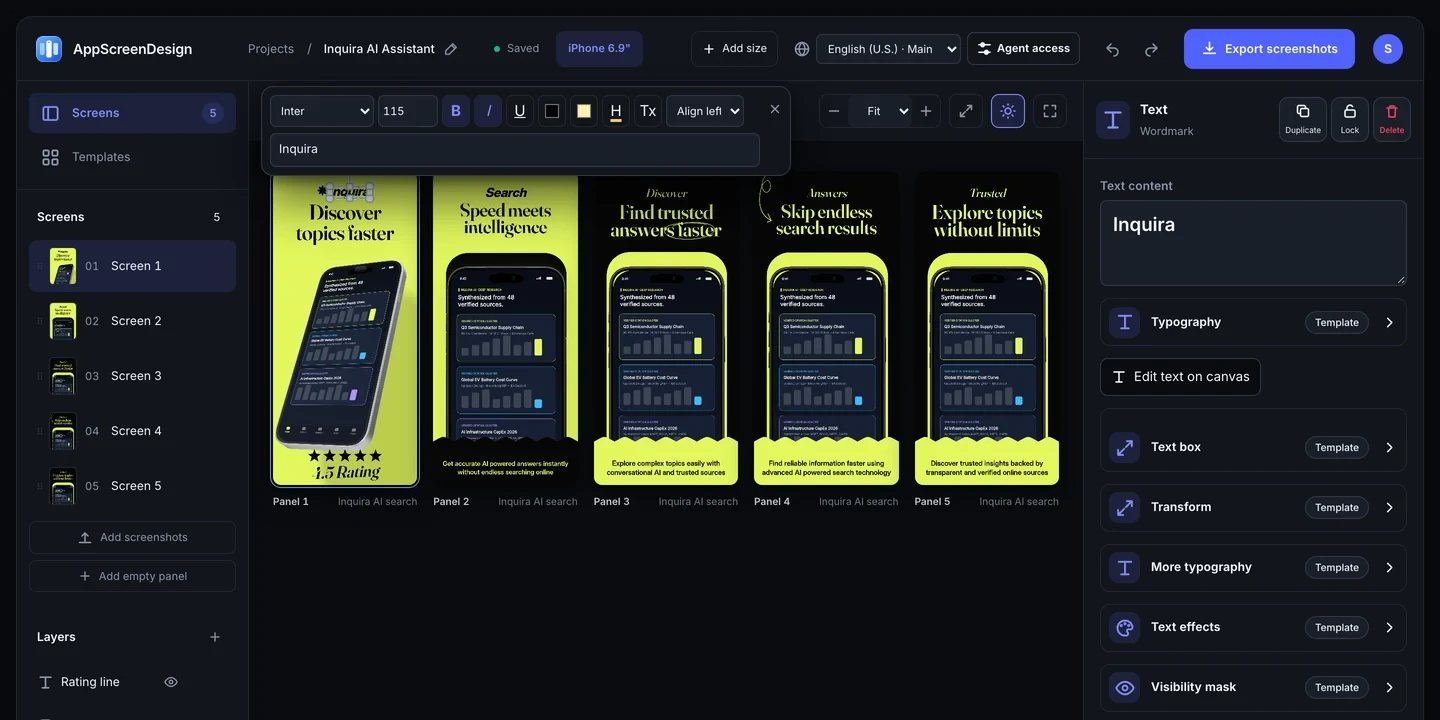
Structured scene synthesis
| Reference cue | Generated SceneDoc layer | Visual Studio control |
|---|---|---|
| Backdrop mood & lighting | Editable gradient stops, studio theme tokens & ambient glow | Switch color themes in 1 click or set exact brand hex codes |
| Angled or floating device pose | True 3D WebGL iPhone, Duo, iPad or Android hardware layer | Drag pitch, yaw, roll, scale & titanium finish at 60fps |
| Headline hierarchy & badges | Live SceneDoc typography & vector store elements | Edit inline on canvas and localize into 50 languages |
| Multi-panel visual flow | Coordinated 5-to-10-panel sequence with shared seam alignment | Swap your own raw UI captures per slot anytime |
Practical walkthrough
Attach both the visual reference and your real app screenshots so the agent or Studio matches composition structure around your actual product UI.
Drop a layout inspiration image alongside 3–10 unframed captures from your app in Claude, ChatGPT, Cursor or Codex connected to https://appscreendesign.com/mcp.
Have your agent build matching background gradients, 3D hardware poses and concise 5-word benefit headlines across as many panels as your listing needs.
Open the project in the browser Studio to inspect contrast at thumbnail scale, adapt brand colors in 1 click, and expand across 50 locales before exporting.
Expand a single visual direction into 5, 8 or 10 coordinated App Store and Google Play panels with consistent typography and color tokens.
Every generated screen opens with editable headlines, 3D hardware pitch/yaw/roll, vector badges, gradients and swappable screenshot slots.
Run reference-to-design prompts inside ChatGPT, Claude, Cursor or Codex over https://appscreendesign.com/mcp with zero token markup.
Use reference images to study layout rhythm—such as headline-to-device proportion, dark obsidian contrast, or connected panoramic bridges—while populating 100% original copy, brand colors and authentic UI captures from your own product.
Once your agent drafts the sequence, open the project in the browser Studio to fine-tune line breaks, adjust 3D lighting, localize into 50 App Store Connect languages and export verified 24-bit RGB PNGs.
Questions
Never. Your agent authors structured SceneDoc JSON layers—live fonts, 3D device models, vector shapes and raw screenshot bindings—that remain 100% editable in the browser Studio.
No. You can build 1 to 10 panels per store family (the Apple App Store maximum) across unlimited draft and Pro projects.
Any multimodal client connected to https://appscreendesign.com/mcp or the REST Editor API—including Claude, ChatGPT, Cursor and OpenAI Codex.
Start with a composition. Keep every detail editable.