Start with a real layout
Choose from reviewed 2D and 3D compositions instead of arranging every phone by hand.

Product guide
AppScreenDesign gives you a starting point that looks designed before you touch a layer. Upload captures, choose a composition, edit the story and export a complete set.
Free during early access · No card required
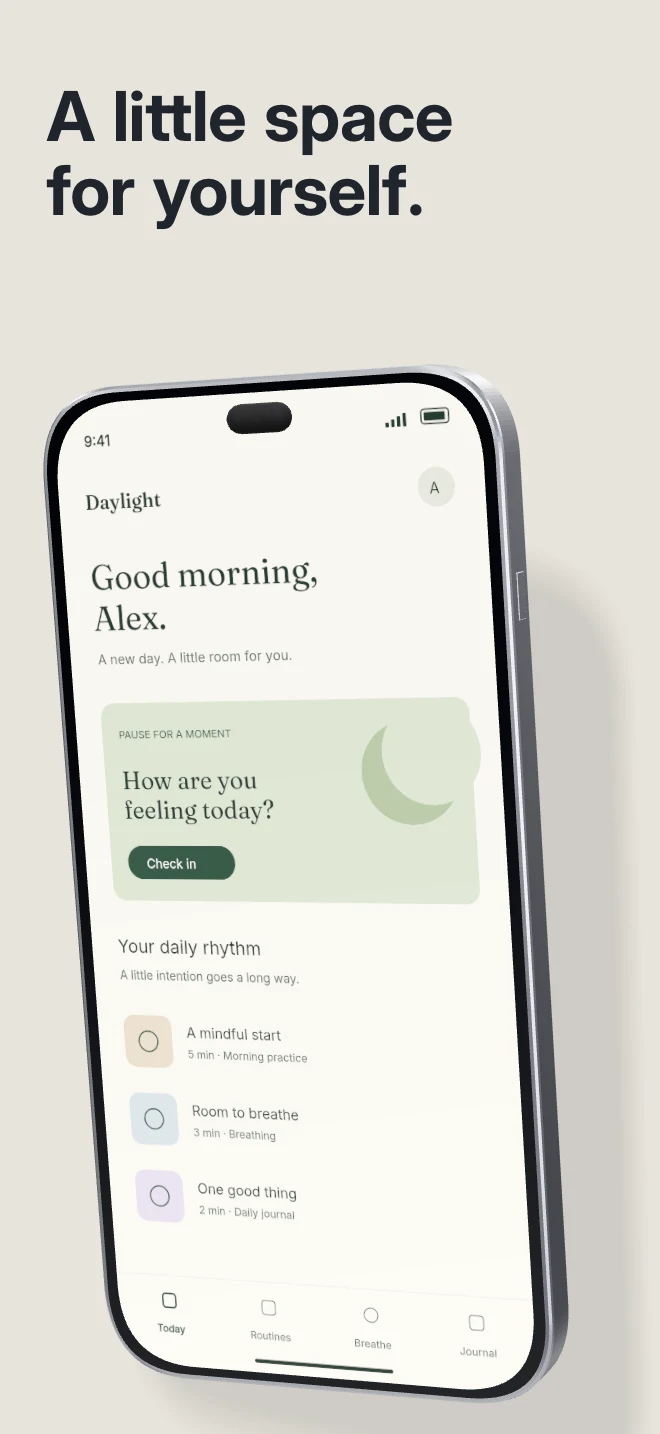
Practical walkthrough
A useful first set answers three questions in order: what does the app help me do, how does it work, and what will I come back for? Use a real capture as evidence for each claim.
Write one concrete benefit for the first screen. Pair it with the interface where that benefit is visible; a decorative splash screen rarely explains the product.
Use later panels for a real workflow: input, feedback, result. Keep one job per screenshot instead of filling every panel with a feature list.
Zoom out until the set is roughly the size it will appear on a phone. Shorten anything that stops being readable, then inspect the full-resolution export for defects.
Choose from reviewed 2D and 3D compositions instead of arranging every phone by hand.
Rewrite captions, change colors, crop artwork, adjust depth and move layers without leaving the project.
Preview each screen before downloading native-size PNGs and a screenshot-set ZIP.
App screenshots are part of your product story. AppScreenDesign keeps the actual app capture central while templates handle spacing, hierarchy and device presentation. You can use the editor on its own or ask your own AI agent to prepare a first pass through MCP.
Projects remember templates, screen variants, copy, localizations and artwork. When the next version ships, replace captures and refine the same visual system instead of rebuilding a marketing file from zero.
Questions
No. Start with your real app screenshots, choose a composition, then change copy, colors, device frames and artwork in the browser editor.
Yes. Upload the original PNG or JPEG captures. Your screenshots replace the illustrative content in a template while the layout stays editable.
Yes. Connect a compatible MCP client after sign in. Your agent can create projects, edit scenes, preview results and export them. Attachment uploads require a client that can provide a supported file reference.
Start with a composition. Keep every detail editable.