Screenshot production
Splitting a panoramic strip into store panels
A connected panorama is one image in the design file and ten separate uploads in the store. Nothing in App Store Connect or Play Console knows that panel two continues panel one. The stores place each file in its own card, in the order you arranged them, and that is the whole mechanism. Once you accept that, splitting a strip stops being an export chore and becomes a layout problem with three fixed answers: the canvas width, the seam treatment, and the panel count each store will accept.
By AppScreenDesign · Published
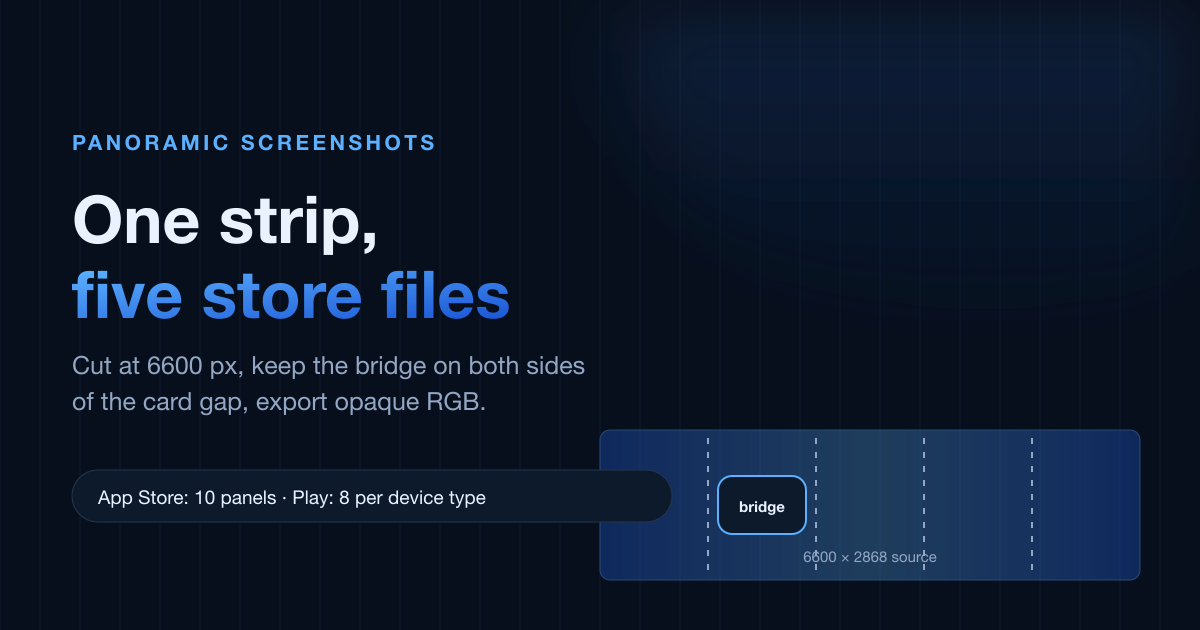
Neither console has a panorama field
Apple's screenshot specifications allow at least one and up to ten screenshots per device size, in .jpeg, .jpg or .png, and state plainly that images cannot carry alpha channels or transparencies. A submission also needs a screenshot for the iPhone with Dynamic Island (medium display), and an iPad 13-inch screenshot if the app runs on iPadOS.
Google Play sets different numbers. Play Console help requires at least two screenshots across device types to publish a listing and allows up to eight for each supported device type. Files must be JPEG or 24-bit PNG without alpha, each side between 320 and 3840 px, and the longest side cannot be more than twice the shortest.
Two consequences follow. Continuity is something the visitor assembles while swiping, because no store renders two files as one image. And the panel ceiling is not the same on both stores, so a ten-panel Apple ribbon cannot ship to Play without being re-cut.
Cut on exact multiples of the preset
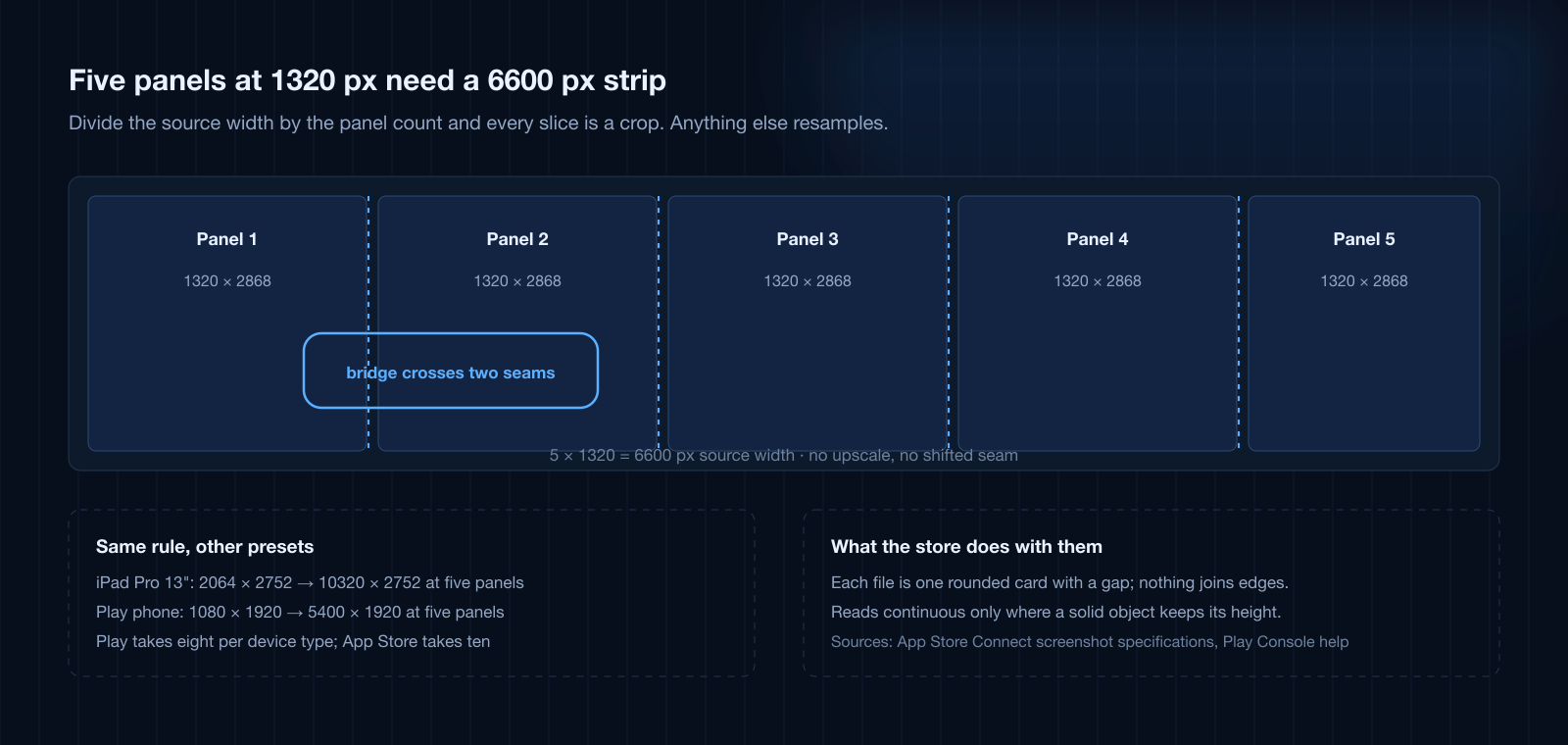
The strip only survives if its width divides cleanly by the panel count. Five iPhone 6.9-inch panels at 1320 px each means a source canvas of 6600 × 2868 px. Three panels is 3960 × 2868. Ten is 13200 px wide. iPad Pro 13-inch panels are 2064 × 2752, so five of them need 10320 px. Play phone panels at 1080 × 1920 need 5400 px for five.
Get that arithmetic wrong and the export rescales instead of cropping. A 6000 px strip cut into five gives 1200 px slices, and each one has to be stretched to 1320, a 1.10× horizontal upscale. Headlines soften, hairlines blur, and every seam lands 120 px away from the grid the design was built on. The panoramic splitter divides by panel count and writes each slice at the preset size, which makes the mismatch visible in the numbers before you export.
The output should be a straight crop with no resampling. If your design tool refuses to export at 6600 px for a five-panel set, fix the canvas rather than letting the exporter interpolate.
A seam in the store is a gap, not a join
App Store product pages show screenshots as separate cards with rounded corners and spacing between them. There is no edge-to-edge contact, so pixel continuity across a boundary is impossible by construction. What reads as continuous is a shape that keeps its position and mass on both sides of the gap.
That changes what belongs near a boundary. A 3D device, a ribbon, a painted arc or a large card can cross, because a human eye tracks the object rather than the missing strip between the cards. A one-pixel horizontal rule running the full width cannot. The gap interrupts it, the two halves drift apart, and the set looks like a mistake rather than a panorama.
Keep the bridging element vertically identical on both sides. If the object rises 8 px across a seam, the gap makes the step look like a rendering fault, not a design choice. Check the result with the App Store preview simulator, which draws the card gap and corner radius instead of showing a flat contact sheet. A strip that passes only as a contact sheet is not finished.
Panel one still has to work alone
Any bridge that begins in panel two is invisible to someone arriving from iOS search, where the leading portrait panels appear beside the app header before a tap. Read the ordering guide for the sequence argument; the panoramic-specific rule is narrower. Put the bridge origin and the first headline inside panel one safe area, then let the object travel right. If the composition only resolves across panels two and three, search traffic never sees the idea.
Play also puts a strip of screenshots on the listing, and the first one does the most work there. A panorama whose interest starts late is a weaker listing on both stores, whatever the full set looks like once someone swipes to the end.
Play takes eight per device type
A ten-panel Apple set meets a firm ceiling on Play. Eight is the maximum per device type, so either re-cut the story to eight or author five and use it on both stores. Play also recommends 9:16 portrait and 16:9 landscape rather than accepting any shape within the 2:1 limit, and a 1080 × 1920 slice sits at 1.78:1, comfortably inside the cap. Exact rules for each Play device class are on the Google Play screenshot sizes page.
Panel geometry carries over less well than the caption does. Play's phone canvas is shorter than the iPhone's, so a device drawn at a fixed pixel size occupies a larger share of a 1080 × 1920 panel. Rebuild the composition for the Play preset instead of pasting slices, and reread the store comparison before deciding a single strip can serve both.
Export opaque, then check the slices in order
Apple rejects alpha, and transparency is the failure that survives a visual review because a mostly opaque PNG looks identical on screen. A slice cut from a design file that used a transparent canvas at the edges, or from a Figma export whose rounded corners sit outside the glass, can carry an alpha channel even where every pixel is solid. Re-encode to 24-bit RGB before upload, using the alpha removal tool or the splitter's opaque export, and confirm the files are true PNG color type 2 rather than RGBA type 6.
Then check the set the way a visitor meets it. Open the panels in upload order, at full resolution, and look only at the seams. Confirm each file matches its preset exactly: 1320 × 2868 for the large iPhone, 2064 × 2752 for iPad Pro 13-inch, 1080 × 1920 for Play phone. If the listing also carries a landscape set, the strip needs a second canvas at 2868 × 1320 with panels sliced along the new axis, because rotating exported portrait slices gives you nothing usable.
The iPhone 6.9-inch size reference and the iPad Pro 13-inch reference carry the accepted dimensions per slot. A panorama is only as good as its weakest panel, and the weakest panel is usually the one whose seam was never checked at 100 percent.
Questions
Common questions.
Can I upload one wide image and let the store split it?
No. Both stores accept one file per screenshot slot and nothing else. The panorama exists only in your design file; the listing gets separate files, arranged in the order you set them.
How wide should a five-panel iPhone panorama be?
6600 × 2868 px. Each of the five App Store panels is 1320 × 2868, so the source width has to be five times the preset width. An iPad Pro 13-inch strip at five panels needs 10320 × 2752 px.
Will the panorama look continuous on the App Store page?
It reads as continuous only where a substantial object keeps its vertical position across a seam. The store draws each screenshot as a rounded card with a gap, so thin lines and single words split at a border look broken no matter how exact the export is.
How many panoramic panels can Google Play take?
Up to eight screenshots per supported device type, with at least two across device types needed to publish. A ten-panel set written for the App Store has to be re-cut to eight panels or shorter for Play.
Do the sliced panels need transparent backgrounds?
No, and they must not have them. Apple rejects images with alpha channels or transparency, and Play asks for JPEG or 24-bit PNG without alpha, so every slice should be exported as opaque RGB.
Where to go next
Build the sequence once.
Export it at every store size.
Compose every panel in one editable project, then export the exact presets App Store Connect expects.