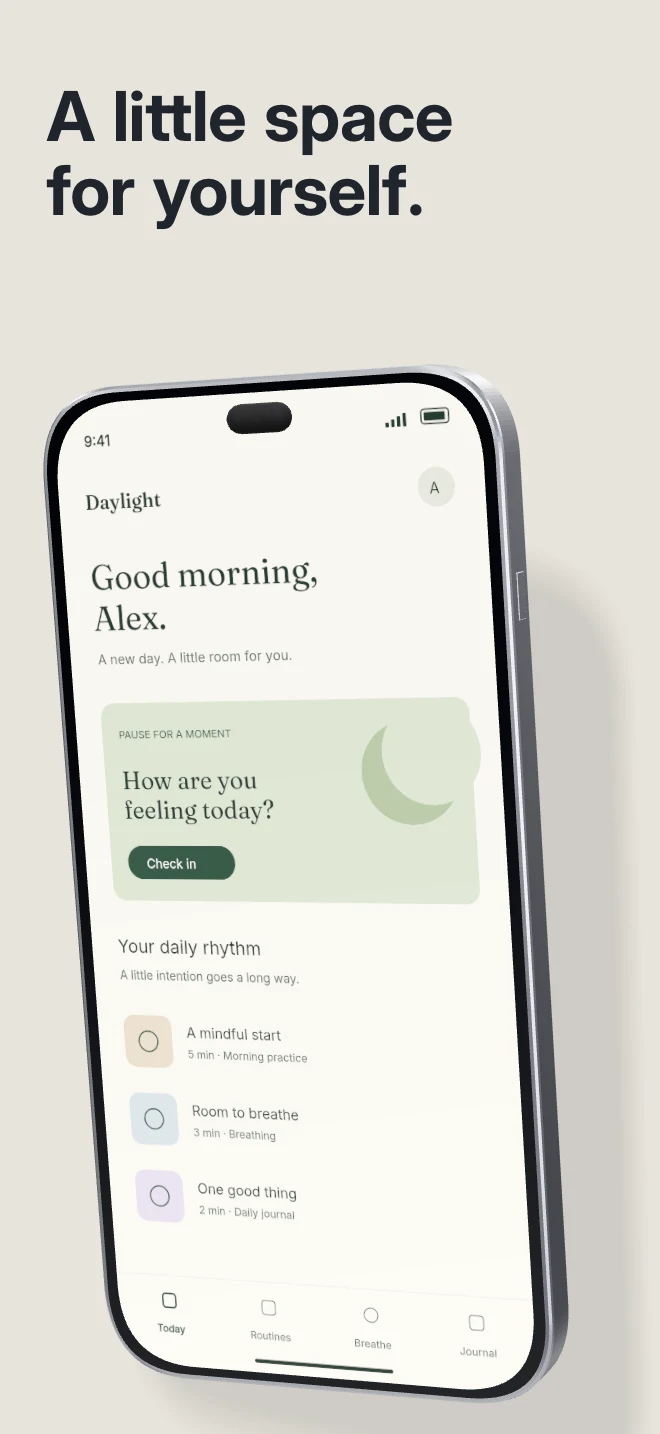
A quiet first frame for a product with a strong interface. A single phone, pale surface and physical cast shadow keep attention on the screen.
Explore template
Template library
A good template gives each screen a job. AppScreenDesign templates cover clean caption layouts, editorial compositions, connected hero scenes and 3D device presentations.
Free during early access · No card required
Explore real compositions
A quiet first frame for a product with a strong interface. A single phone, pale surface and physical cast shadow keep attention on the screen.
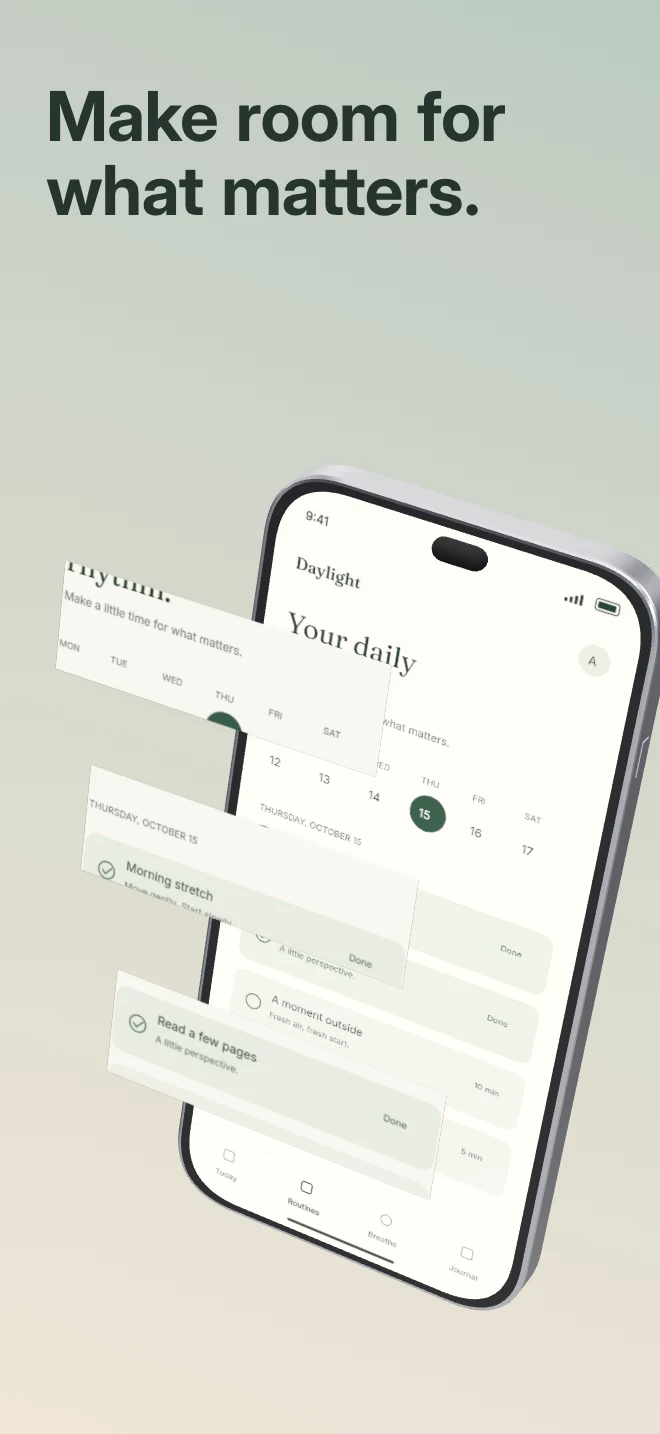
Explore templateBring a detail out of the interface. Real crops from the uploaded capture float in front of the complete phone with independent depth.
Explore template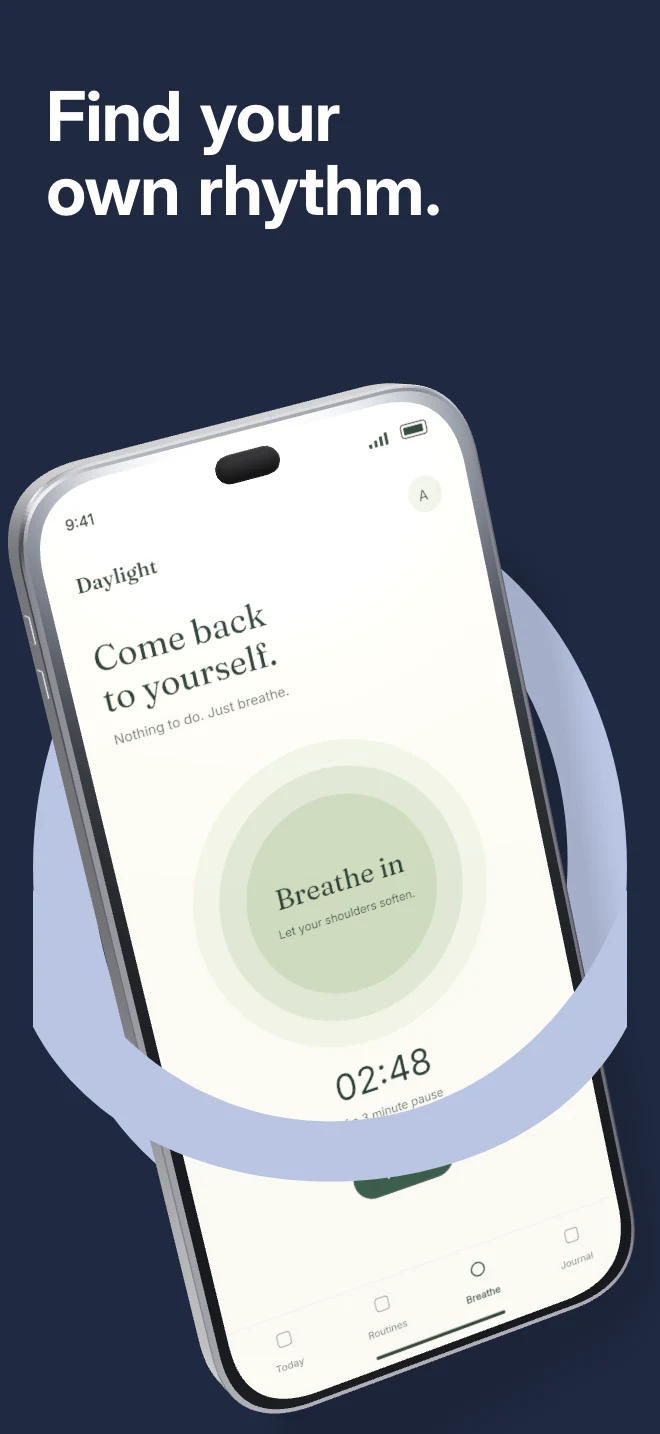
A tilted phone passes through a foreground arch. The editable vector shape frames the device while the scene handles physical overlap.
Explore template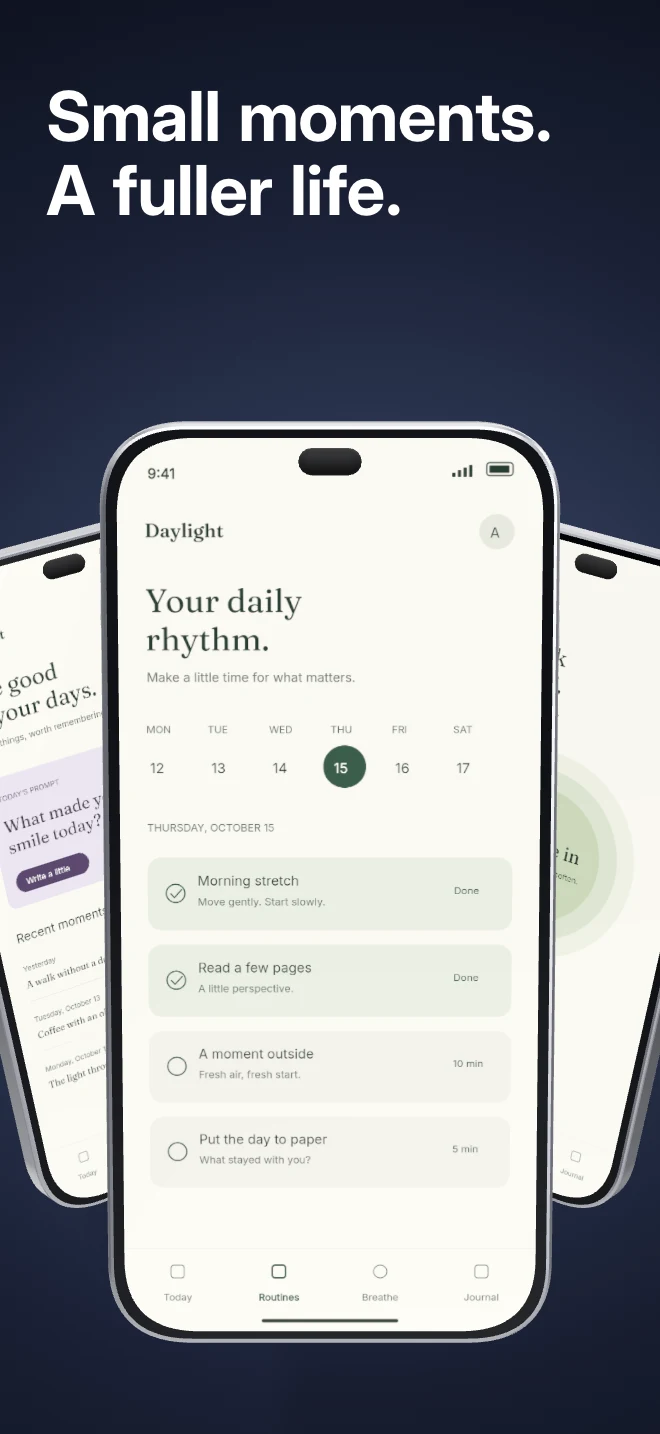
Three independent app screens sit in a shallow arc under shared lighting. Show a small product story inside a single composition.
Explore templatePractical walkthrough
A striking preview is only useful if your capture works inside it. Start with the screenshot that is hardest to present, then compare directions with that same source.
When the product is already colorful or information-dense, a quiet background gives its UI room. Start with Minimal light and one short caption.
A single rotated phone works when one interaction deserves attention. Exploded layers work when a small UI detail adds information at a larger scale.
Choose related captures, then inspect each slot. A repeated screen in three frames adds less information than setup, action and result.
Find 3D, flat, connected hero and reviewed layouts in one workspace.
Upload screenshots first so template previews show your own app rather than generic placeholders.
A template is a starting layout. Every visible layer remains available in the editor.
Use a quiet caption-led layout when the interface should speak for itself. Use a 3D or connected composition when a launch moment needs more energy. Device and platform filters keep irrelevant families out of view.
Choosing a template does not flatten the project. Captions, rich text, backgrounds, images, devices, masks and 3D controls stay editable, and undo restores the earlier design.
Questions
No. Start with your real app screenshots, choose a composition, then change copy, colors, device frames and artwork in the browser editor.
Yes. Upload the original PNG or JPEG captures. Your screenshots replace the illustrative content in a template while the layout stays editable.
Yes. Connect a compatible MCP client after sign in. Your agent can create projects, edit scenes, preview results and export them. Attachment uploads require a client that can provide a supported file reference.
Start with a composition. Keep every detail editable.