Wide by design
Use templates authored for the landscape iPad canvas and keep the product screen easy to read.

Device workflow
Start with the landscape canvas, upload the captures that belong there and shape a wide reading path around the interface instead of squeezing an iPhone poster into a tablet frame.
Free during early access · No card required
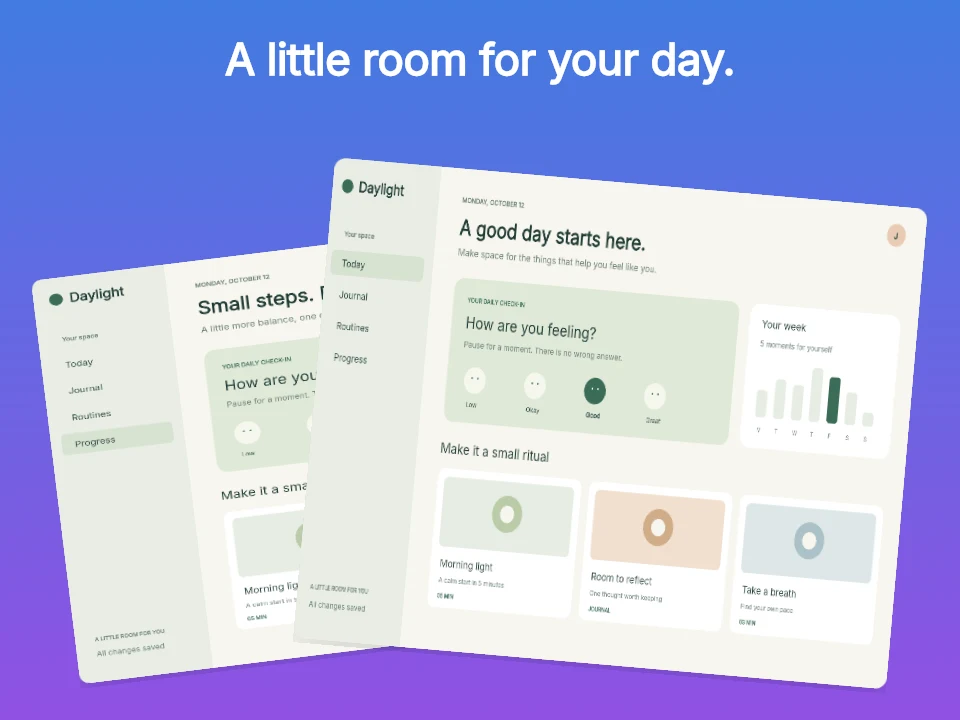
Practical walkthrough
Use the width for context, not more competing claims. In a two-capture layout, choose a primary view and let the smaller one explain a related state.
A dashboard and its detail view make a clearer pair than two unrelated tabs. Put the screen with the main action in front.
The Cielo example uses two independent image layers. Move and crop them so navigation labels and the key result remain visible.
Keep the headline position and visual weight consistent across panels. Avoid alternating between tiny interfaces and oversized details without a reason.
Use templates authored for the landscape iPad canvas and keep the product screen easy to read.
Change headlines, device poses, backgrounds and artwork while the capture remains the source of truth.
Review the 2752 × 2064 export family before downloading the set.
Landscape screenshots need a deliberate path across the frame. Keep the headline, device and supporting detail grouped so the eye does not bounce between unrelated edges.
The iPad landscape family has its own panels, templates and captures. Changing it does not silently replace an iPhone screen in the same project.
Questions
No. Start with your real app screenshots, choose a composition, then change copy, colors, device frames and artwork in the browser editor.
Yes. Upload the original PNG or JPEG captures. Your screenshots replace the illustrative content in a template while the layout stays editable.
Yes. Connect a compatible MCP client after sign in. Your agent can create projects, edit scenes, preview results and export them. Attachment uploads require a client that can provide a supported file reference.
Start with a composition. Keep every detail editable.