Lead with an outcome
Use the first caption to name the change your app helps a person make.

Use-case templates
Health and fitness products often need a sequence: promise, daily action, progress and payoff. Use a composition that makes that sequence easy to scan.
Free during early access · No card required
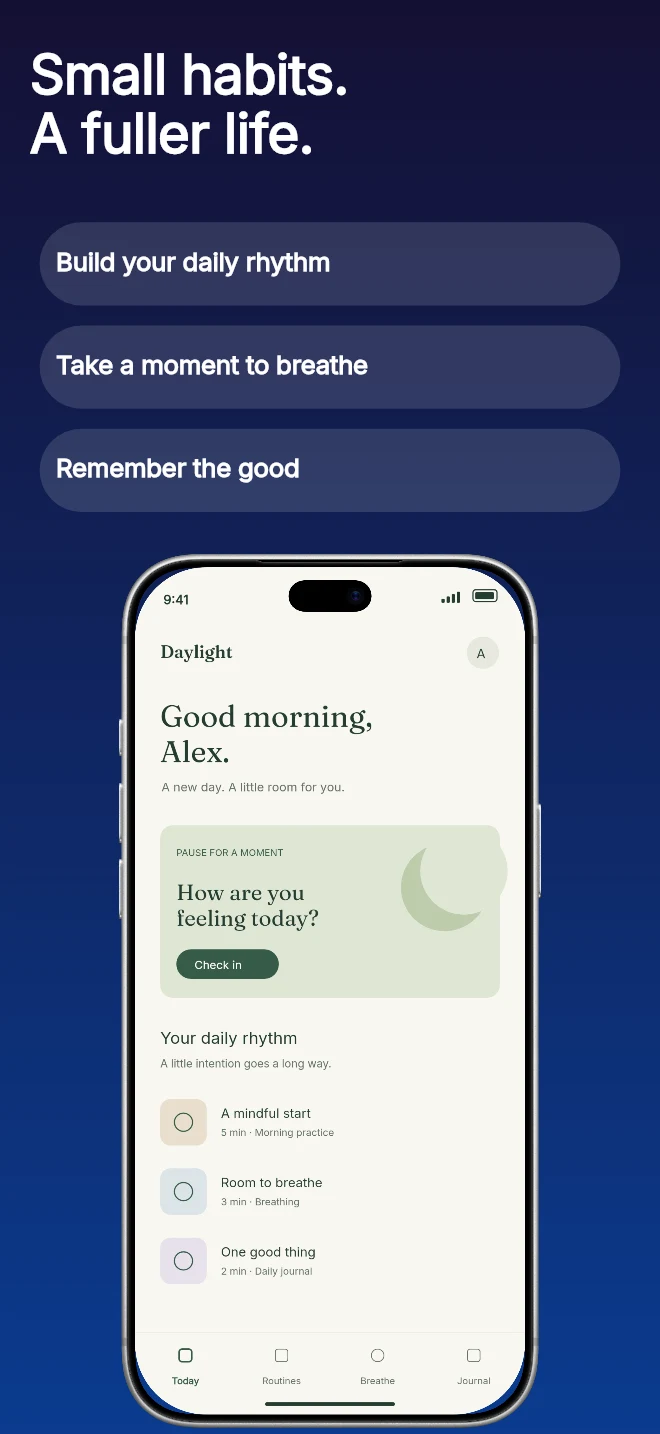
Practical walkthrough
The illustrative Daylight screens demonstrate a routine-led story. Use your own interface and supported benefits; this sequence is a planning example, not a promise of health outcomes.
Caption idea: “A little space for yourself.” Show the check-in or routine that a person will actually use. Studio shadow keeps that first interaction central.
Show a plan, breathing practice or habit flow. Use Feature pills only if its short labels add useful distinctions.
Show a genuine progress view from the app. Keep claims specific and avoid unsupported medical results, social proof or numerical outcomes.
Use the first caption to name the change your app helps a person make.
Use subsequent screens for check-ins, plans, progress and the moments between them.
Edit badges and copy to match benefits you can support in the product and store listing.
The template should help a reader move from “what is this?” to “how would I use it?” without asking them to decode a dense collage.
Use clear, responsible language for health and wellness features. The editor makes copy changes easy when product or compliance review changes a claim.
Questions
No. Start with your real app screenshots, choose a composition, then change copy, colors, device frames and artwork in the browser editor.
Yes. Upload the original PNG or JPEG captures. Your screenshots replace the illustrative content in a template while the layout stays editable.
Yes. Connect a compatible MCP client after sign in. Your agent can create projects, edit scenes, preview results and export them. Attachment uploads require a client that can provide a supported file reference.
Start with a composition. Keep every detail editable.