Short copy wins
Keep each caption to one useful idea so it survives the compact store canvas.

Device workflow
Apple Watch screenshots have less room for explanation. Use a focused layout, short copy and the supported Watch output instead of adapting an iPhone composition by hand.
Free during early access · No card required
Practical walkthrough
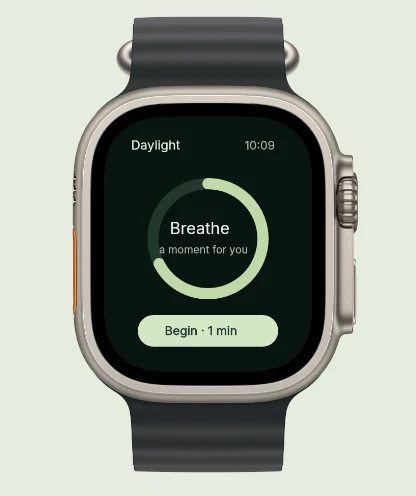
The example shows a purpose-built wearable interface, not a reduced phone capture. Your upload should come from the Watch app too.
A timer, progress ring or quick action is easier to understand than a dense settings list. Use the state that expresses the watch-specific benefit.
Check the curved display corners and any important controls near them. Match the raw capture ratio to the selected frame.
Apple requires the same Watch screenshot size across an app’s localizations. Review localized labels and choose one supported size for the release.
Keep each caption to one useful idea so it survives the compact store canvas.
Lead with the glance, reminder or quick action that makes the Watch experience valuable.
The editor uses the Watch output contract and keeps its screens separate from phone and tablet work.
A Watch screenshot is read quickly and often at a small size. Use strong contrast, fewer words and one recognizable moment from the app.
A set can explain the product across several small screens. Keep the first image clear, then use later panels for setup, result and repeat use.
Questions
No. Start with your real app screenshots, choose a composition, then change copy, colors, device frames and artwork in the browser editor.
Yes. Upload the original PNG or JPEG captures. Your screenshots replace the illustrative content in a template while the layout stays editable.
Yes. Connect a compatible MCP client after sign in. Your agent can create projects, edit scenes, preview results and export them. Attachment uploads require a client that can provide a supported file reference.
Start with a composition. Keep every detail editable.